BolFrame Get the app
Help

How to use BolFrame

Step by step, with real screens from the app, for each tool.

Short video tutorials for each tool are coming soon.

Getting started

Start a new video

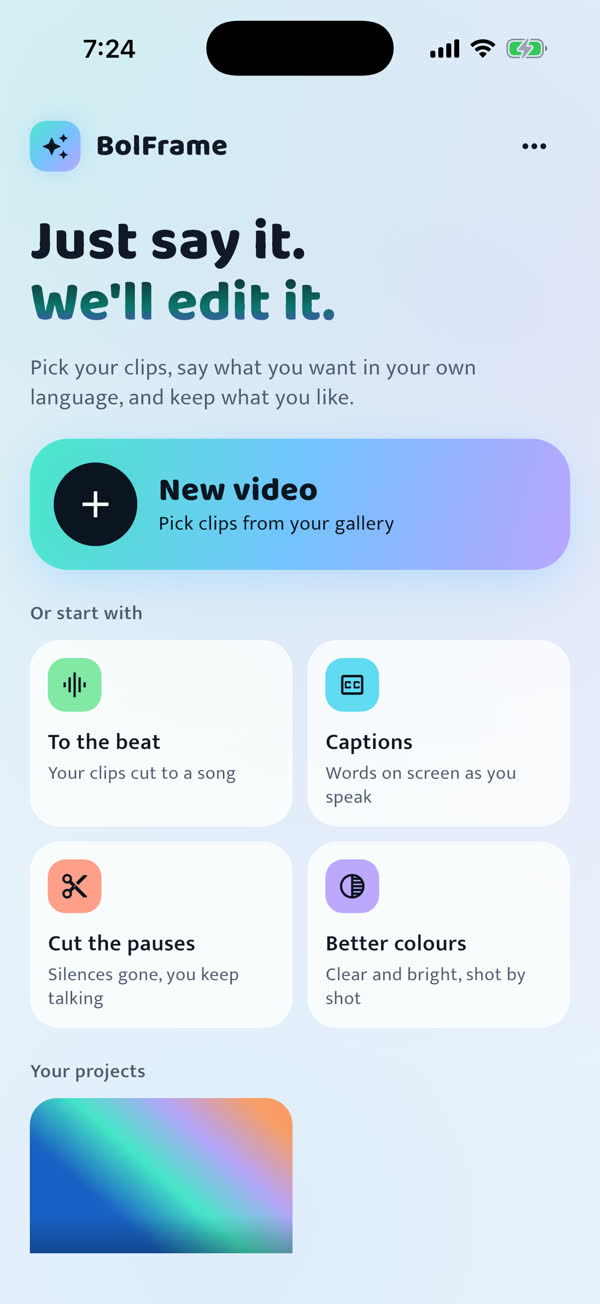
Everything starts from the home screen.

  1. Tap New video and pick clips or photos from your gallery. Pick several and they're joined in the order you chose.
  2. Or tap one of the starts, such as Captions or Cut the pauses: pick your clips and it's done for you.
  3. Your projects are on the home screen. Tap one to carry on where you left off.
Start a new video

Just say it

Tell BolFrame what you want, in your own words and language.

  1. Tap the mic and speak, or tap the keyboard to type.
  2. Say anything: "captions lagao", "थोडा उजळ कर", "make it warm and add music". Several things in one sentence are fine.
  3. The change goes straight onto your video and plays that part once. Keep going, or Undo.

If the AI can't do something you asked, it says so, and points you to the tool that does it by hand.

Just say it

Change only one part

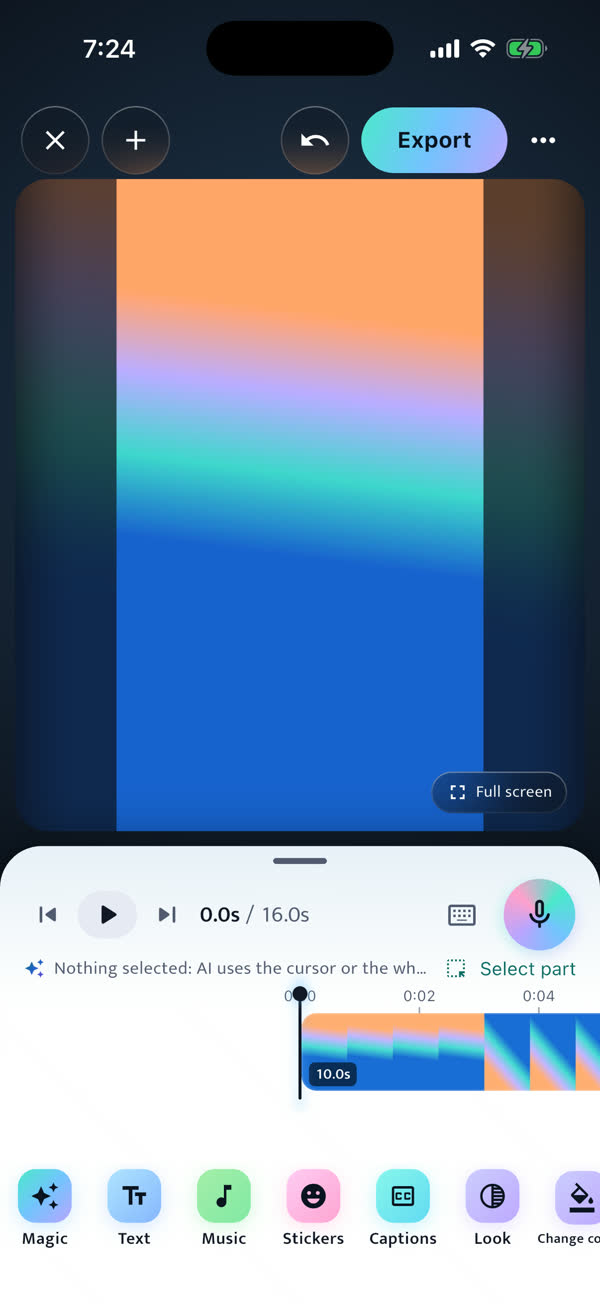
With nothing selected, the AI works from the cursor.

  1. Tap Select part and drag the edges over the part you want.
  2. Now say or type the change: it applies only there.
  3. Tap Clear to go back to the whole video.

Undo anything

Every change can be taken back, and your original is never touched.

  1. Tap the Undo arrow at the top. One sentence to the AI is one Undo, however many things it did.
  2. Hold to compare shows the video before and after.

Let the AI do more

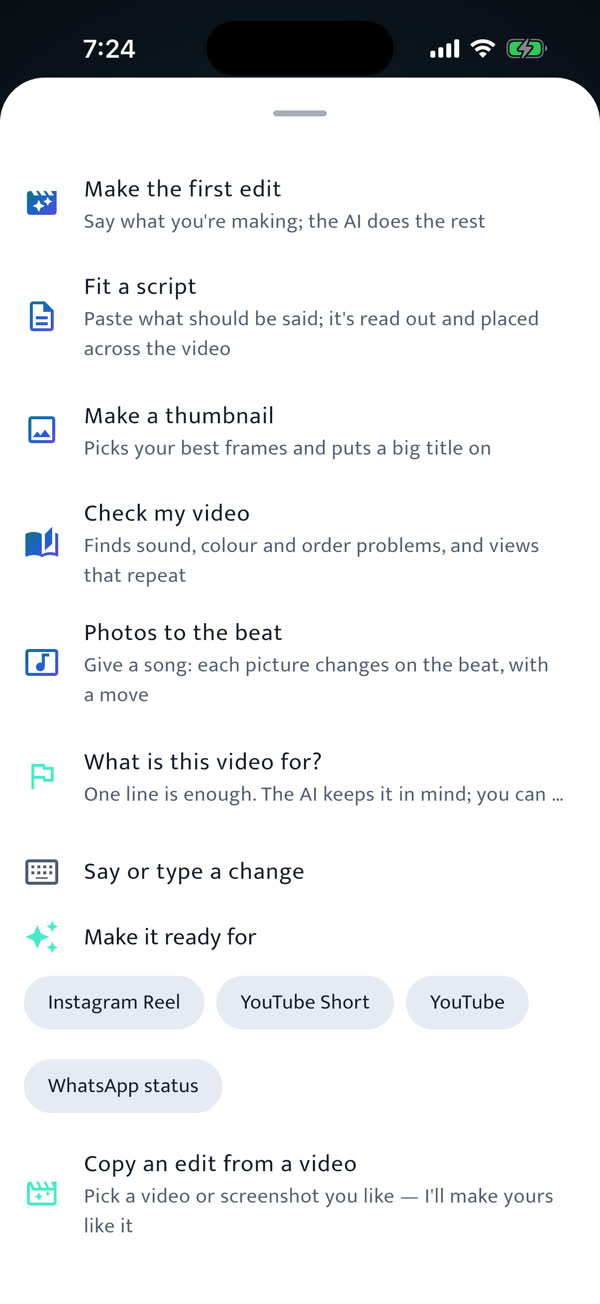
Make the first edit

Say what you're making, and the AI puts the first version together.

  1. Tap Magic, then Make the first edit.
  2. Choose what it is (trip, family or wedding, party, talking video) or just say it: "Goa trip with friends".
  3. Pick a length, or leave it on Auto. Watch it work step by step, then keep it or Undo all.
Make the first edit

Fit a script

Have a script? BolFrame reads it out and places it across your video.

  1. Tap Magic, then Fit a script.
  2. Paste or type your script, in any of your languages.
  3. Choose who reads it: a voice from your phone, or No voice for words on screen only. Tap Fit to video.

If the video is too short for all of it, it tells you how many lines didn't fit.

Tools

Captions

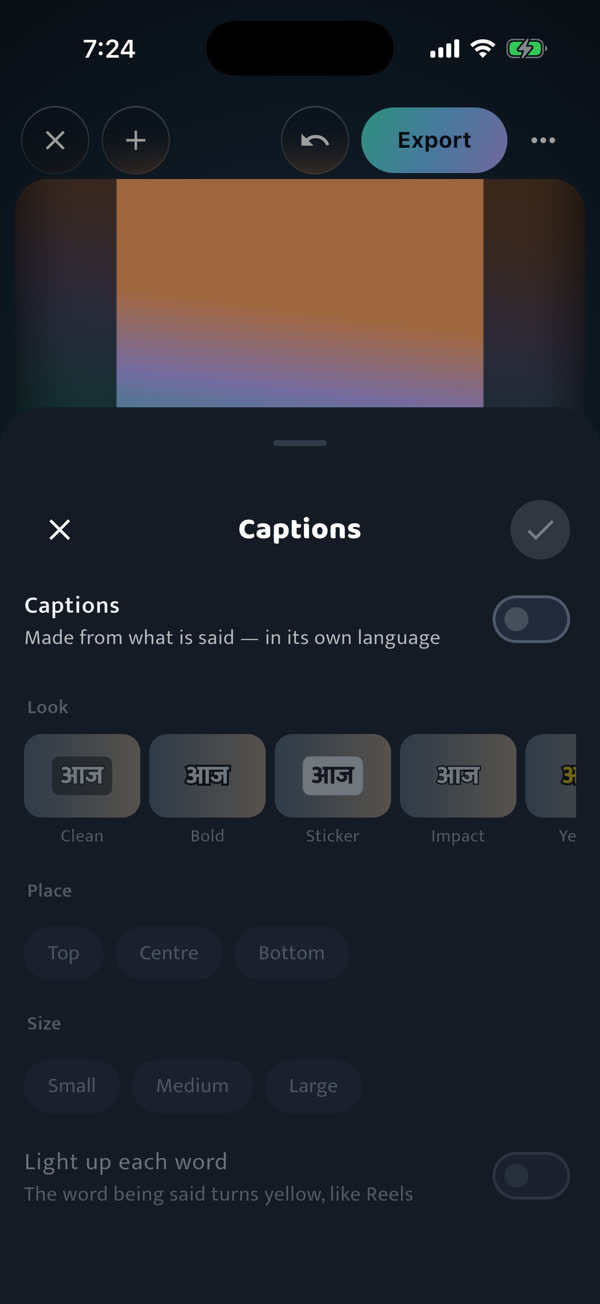
Words on screen as they're said, in the language they're said in.

  1. Tap Captions and turn them on.
  2. Choose a look, where they sit, and the size. Light up each word makes the word being said turn yellow, like Reels.
  3. Spot a wrong word? Tap the caption on the video and fix it. If the same mistake is in other lines, it offers to fix those too.
Captions

Text on video

Titles in correct Hindi, Marathi, Tamil and English, with designs and entrances.

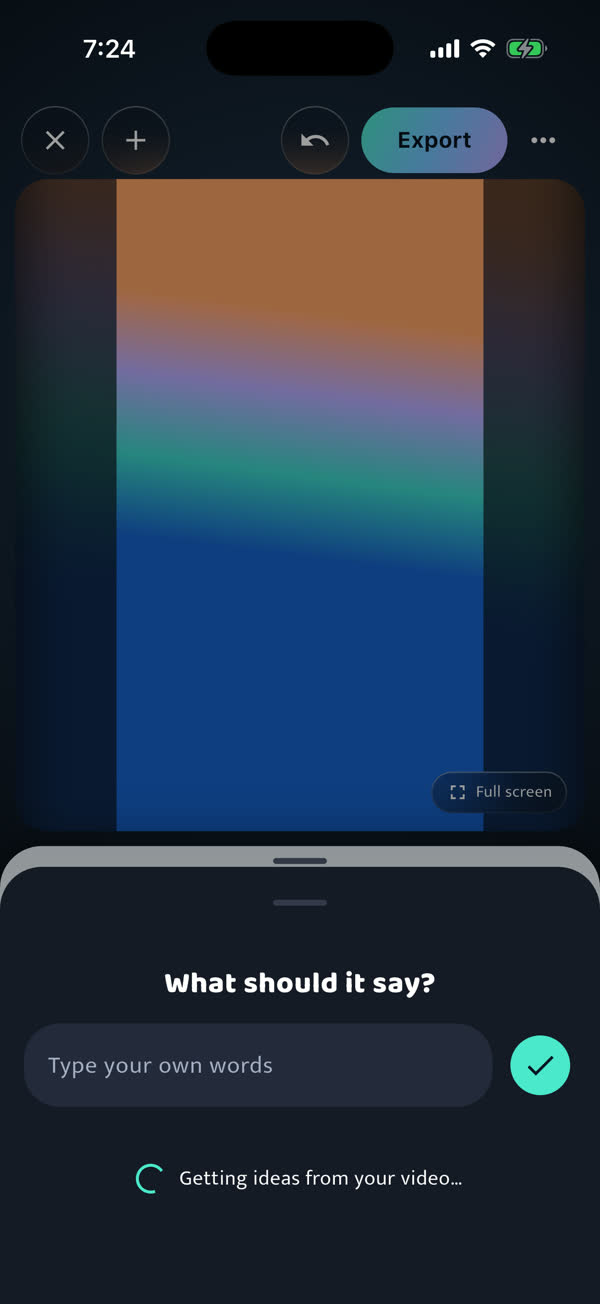
  1. Tap Text and type, or pick one of the ideas made from your video.
  2. Choose a design and a font. Drag it on the video, and pinch to resize or turn it.
  3. Use Animate for how it comes in, and Keyframes to move it, fade it or change its colour along the video.
Text on video

Music

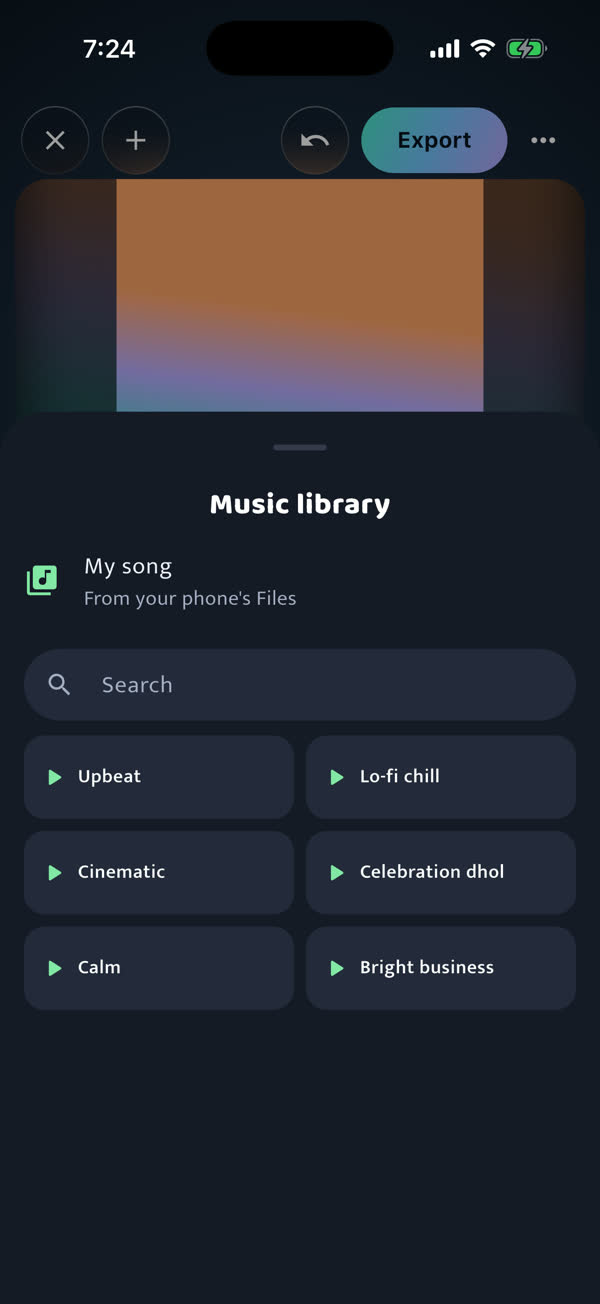
Add a song from the library, your own song, or the sound of another video.

  1. Tap Music. Tap a track to hear it, and add the one you like.
  2. For your own song, choose My song and pick it from your phone's Files.
  3. On the timeline, drag its edges to choose which part plays. Say "music thoda kam karo" to make it softer.
Music

Stickers

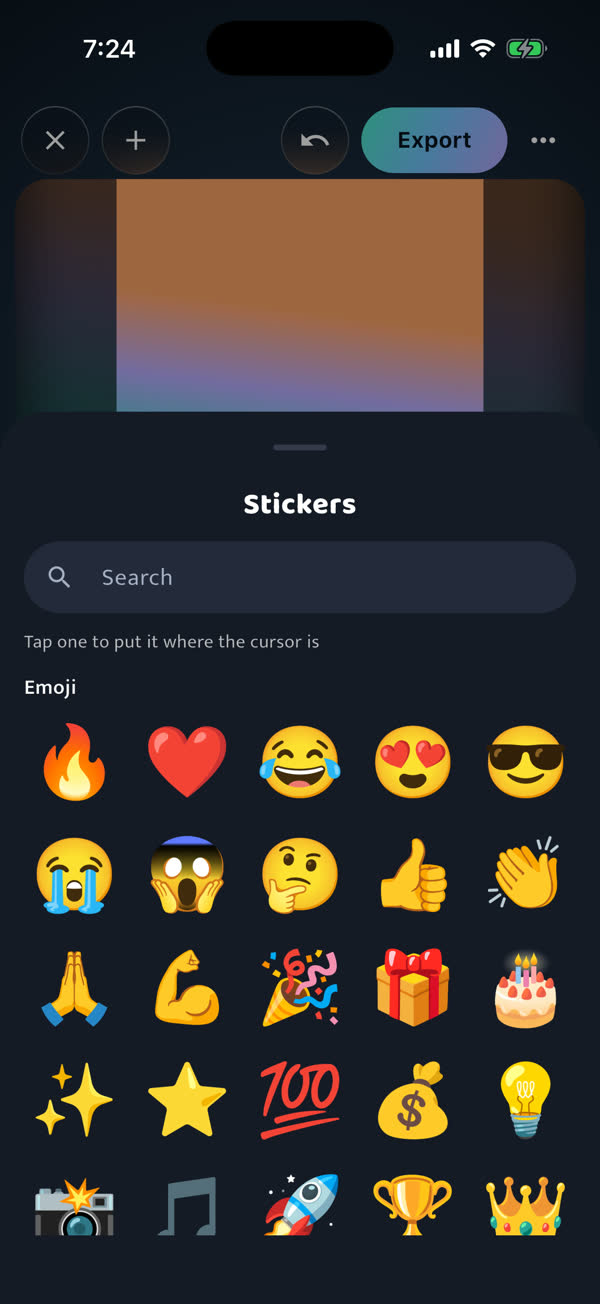
Emoji, moving emoji, Indian word badges and shapes.

  1. Move the cursor to where it should appear, then tap Stickers.
  2. Search, or tap one: it goes on at the cursor.
  3. Drag it on the video, and pinch to resize it.
Stickers

Look

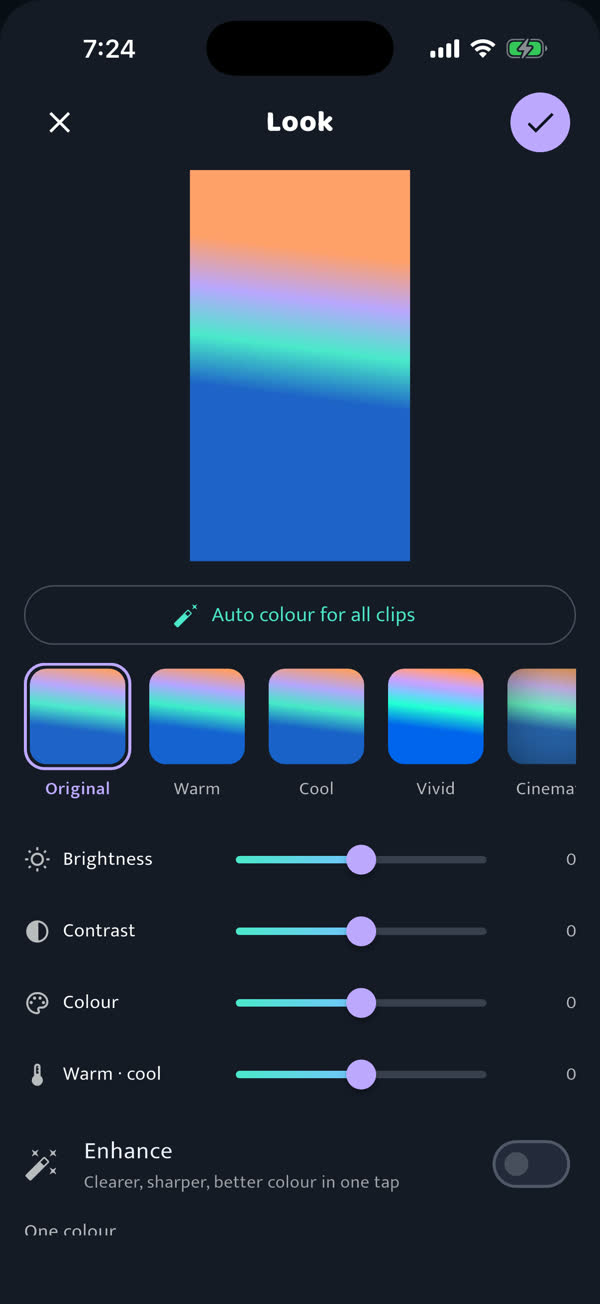
Colours and light, for the whole video.

  1. Tap Look and choose a style: Warm, Cool, Vivid, Cinematic, B&W and more.
  2. Fine-tune brightness, contrast, colour and warmth with the sliders. Enhance makes it clearer and sharper in one tap.
  3. Auto colour for all clips evens out clips that were shot differently.
Look

Change one thing's colour

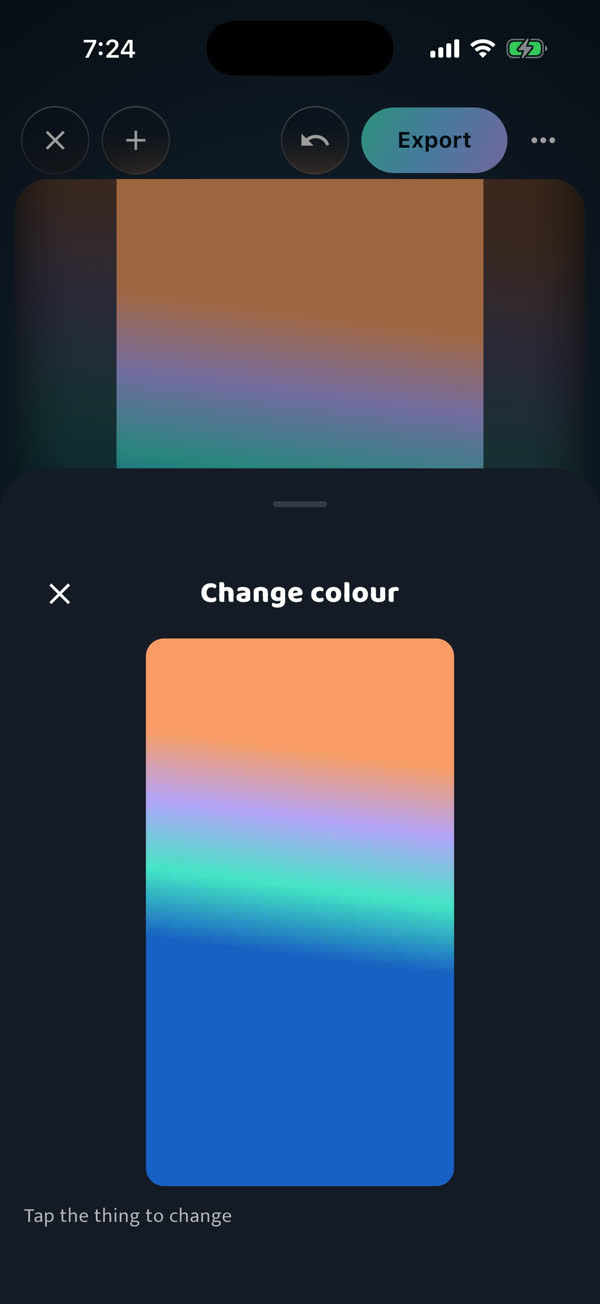
Make a shirt, a car or a wall another colour, and it stays changed as it moves.

  1. Tap Change colour.
  2. Tap the thing to change, in the picture.
  3. Choose its new colour and tap Change it.

It works best on something with a clear colour of its own. To undo it, use Put the colour back.

Change one thing's colour

Effects

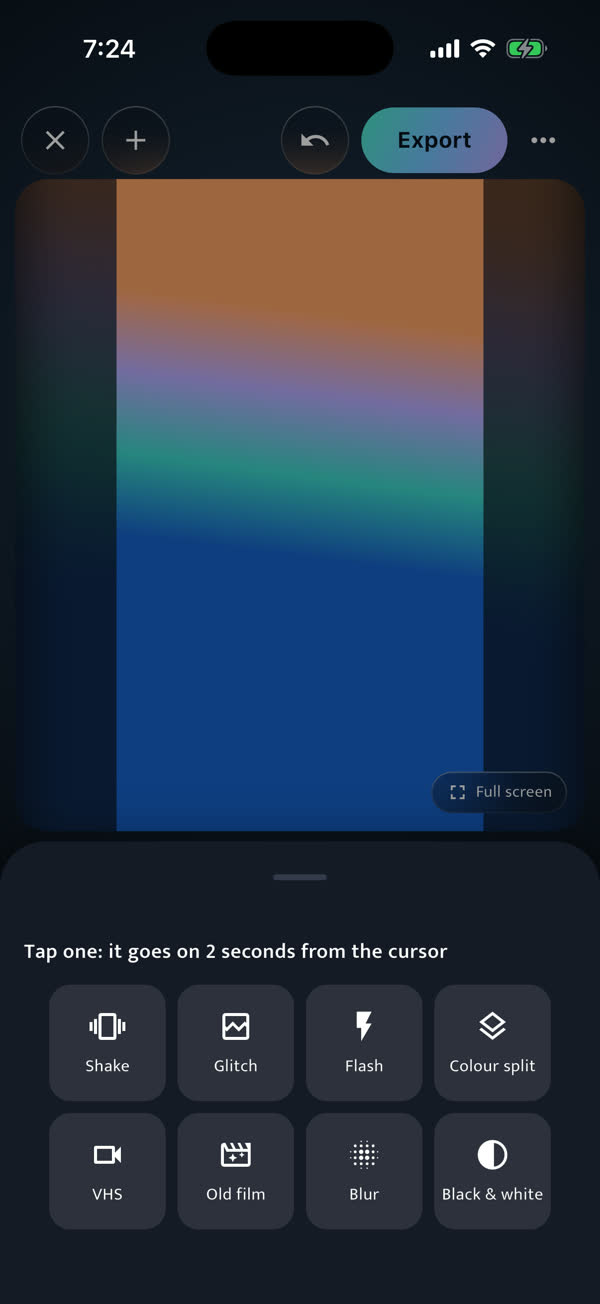
Shake, Glitch, Flash, Colour split, VHS, Old film, Blur and Black & white.

  1. Move the cursor to where it should start.
  2. Tap Effects and tap one: it goes on for 2 seconds from the cursor.
  3. Drag its ends on the timeline to make it longer or shorter.
Effects

Hide a face or a number plate

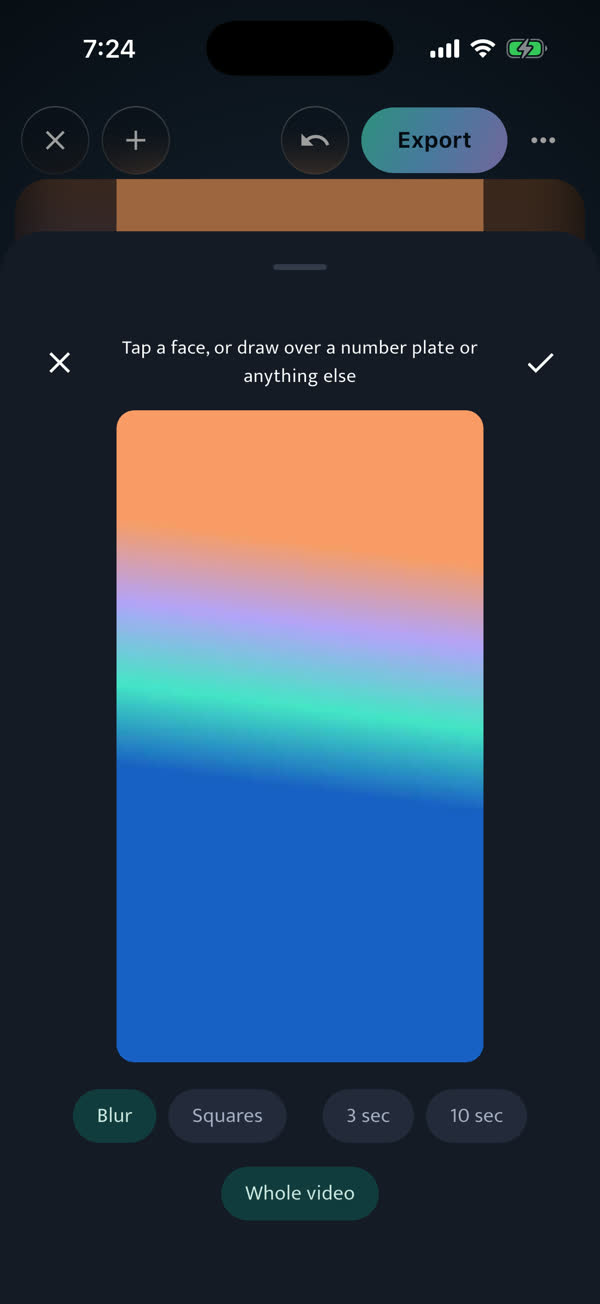
Blur or cover something, and it follows it through the video.

  1. Tap Hide.
  2. Tap a face, or draw over a number plate or anything else.
  3. Choose Blur or Squares, and how long: 3 seconds, 10 seconds or the whole video.

Say "chehra blur karo" to cover every face at once.

Hide a face or a number plate

Cut, speed and transitions

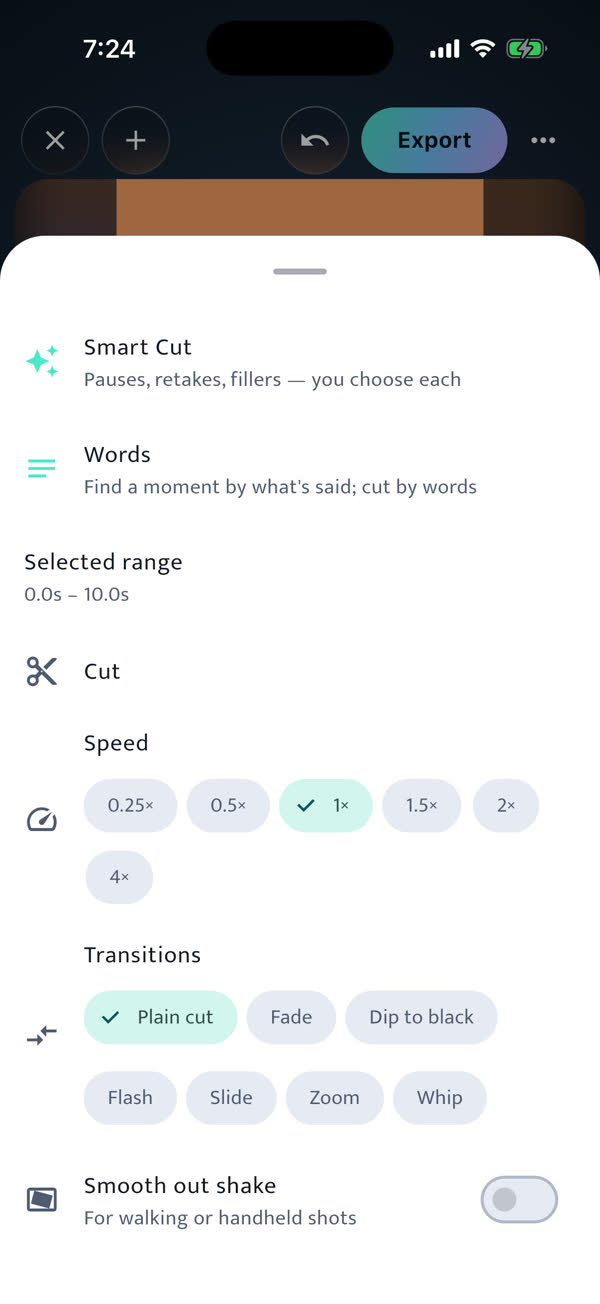
Trim, split and speed up, and let Smart Cut find the parts to remove.

  1. Tap Cut. Smart Cut finds pauses, retakes and fillers, and you choose what goes.
  2. Words shows what's said: tap a word to jump there, and cut by words.
  3. For the selected part, choose a speed (0.25× to 4×), a transition between clips, and Smooth out shake for walking shots.

Tap a clip on the timeline and drag its edges to trim it.

Cut, speed and transitions

Shape for Reels, YouTube and more

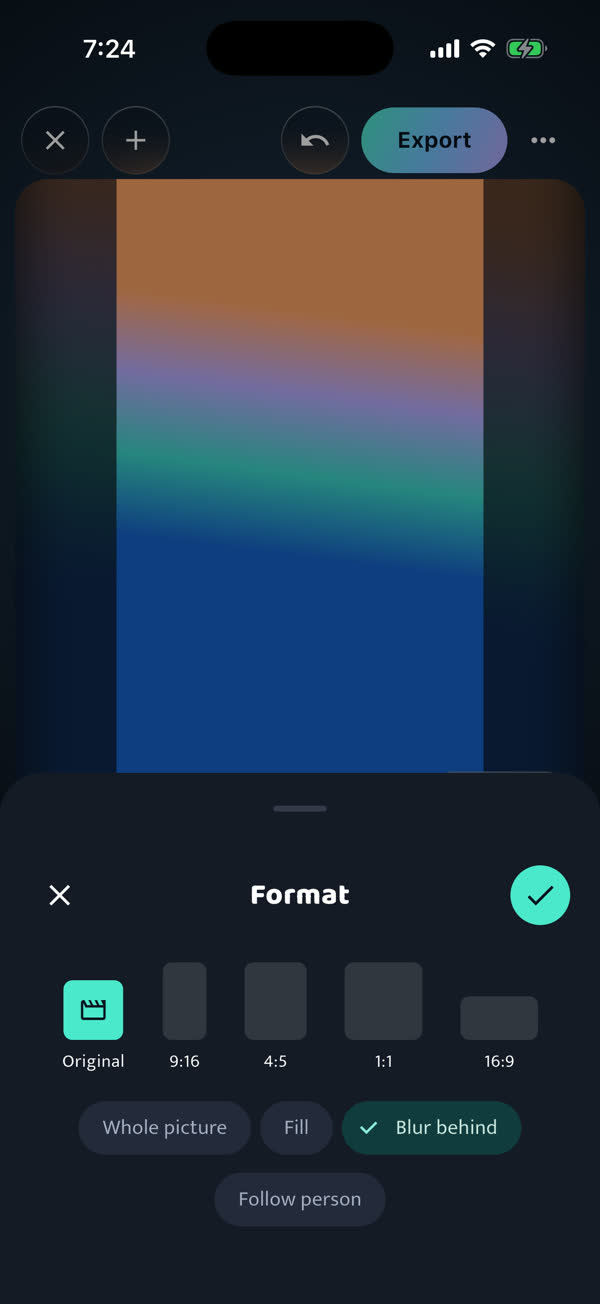
Change the shape without cutting anything off by mistake.

  1. Tap Format and choose: Original, 9:16 for Reels and Shorts, 4:5, 1:1 or 16:9.
  2. Choose how the picture fills it: Whole picture, Fill, or Blur behind.
  3. Follow person keeps the person in the frame when the shape is narrower.
Shape for Reels, YouTube and more

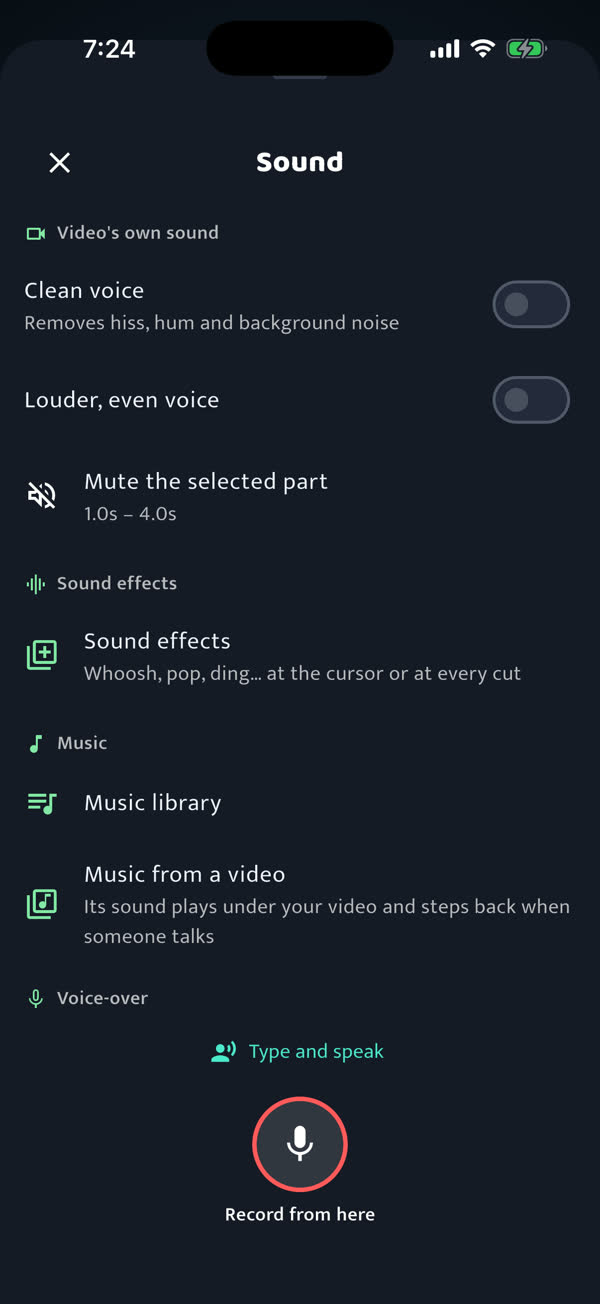
Sound and voice-over

Clean up the voice, add sound effects, or record your own voice.

  1. Tap Sound. Clean voice removes hiss, hum and background noise; Louder, even voice keeps it steady.
  2. Sound effects adds a whoosh, pop or ding at the cursor, or at every cut.
  3. Voice-over: tap Record from here, or Type and speak to turn words into a voice.
Sound and voice-over

Saving and your account

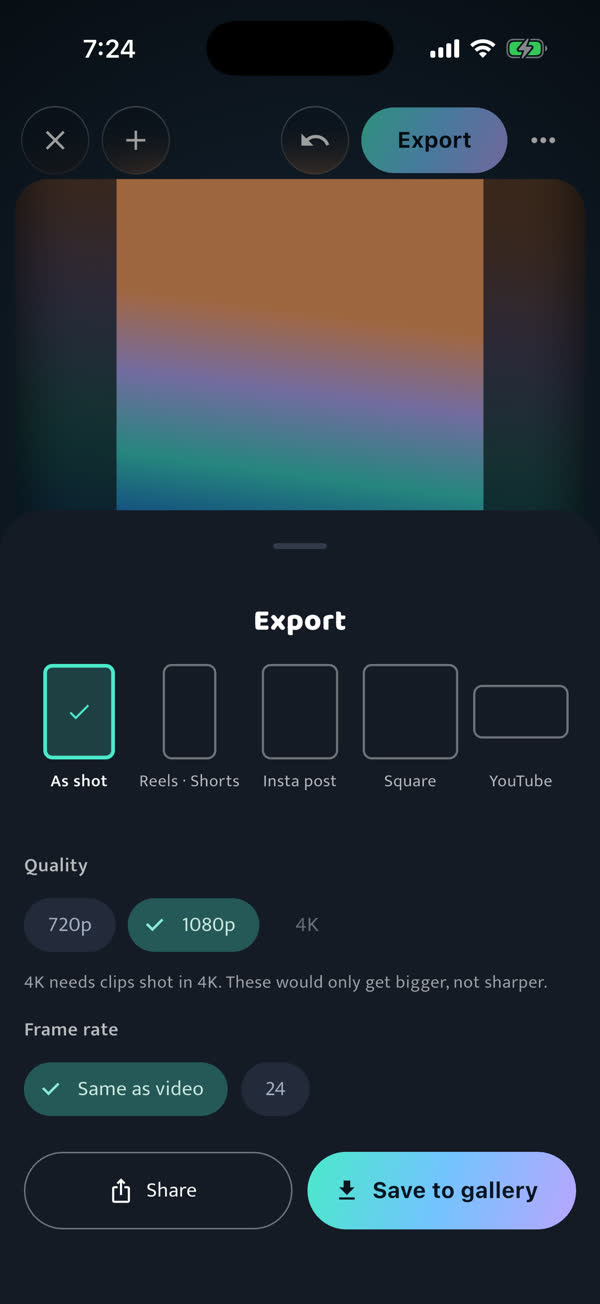
Save and share

Your video is made from your original footage, so it stays sharp.

  1. Tap Export.
  2. Choose one or more shapes (As shot, Reels and Shorts, Insta post, Square, YouTube) and the quality: 720p, 1080p, or 4K when it was shot in 4K.
  3. Tap Save to gallery, or Share.

The first export asks for your mobile number: it's free, with no password.

Save and share

Login, credits and your account

Editing by hand is free. AI edits use credits.

  1. You get a few free AI edits on each phone. After that, log in with your mobile number and the code sent to it.
  2. New accounts get some free credits. One sentence to the AI is one credit, and nothing is used if it can't do it.
  3. In the ••• menu, Account shows your credits and lets you log out or delete your account.